Liquid MotionText Reveal FX
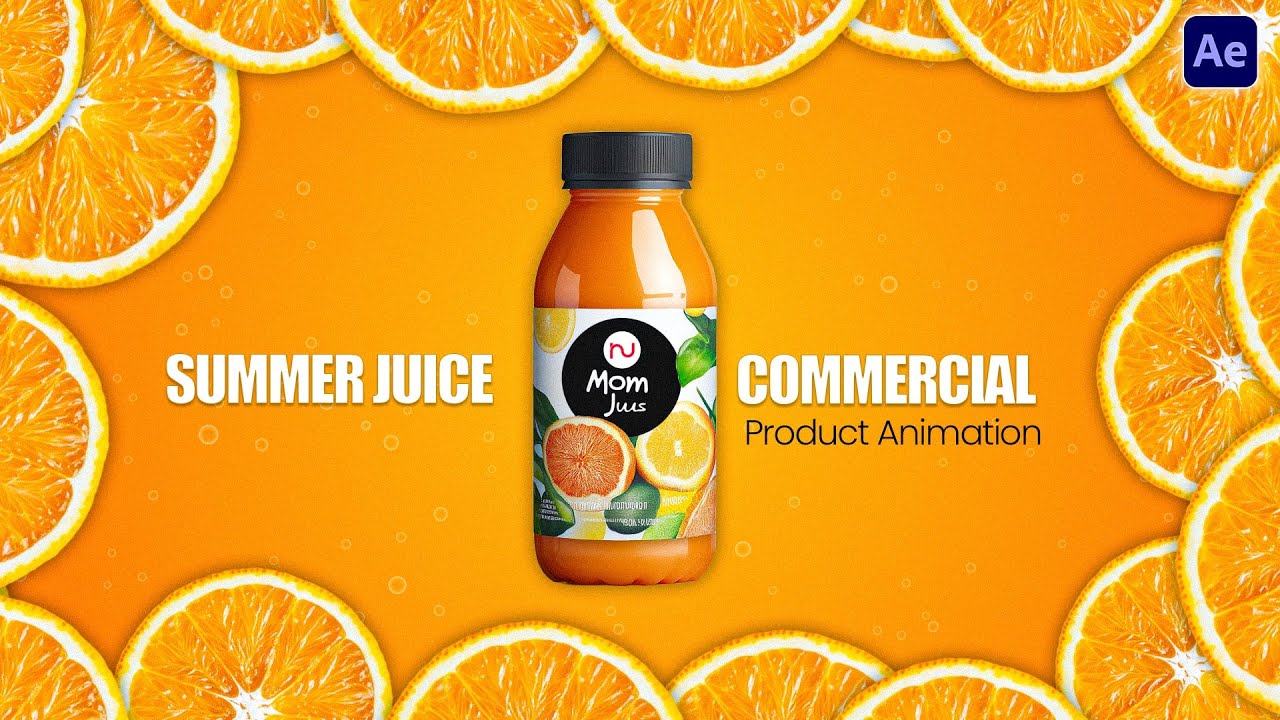
How do you turn a static product shot into a refreshing, dynamic ad? By making the product create the typography. In this workflow, a juice bottle swings into frame, pops its cap, and shoots a stream of liquid that organically forms the branding text.
Product motion design is all about energy and transition. A bottle of juice sitting on a colorful background is fine for a print ad, but on video, you need momentum. This tutorial breaks down a highly requested commercial technique: the Liquid Text Reveal.
Instead of relying on heavy third-party fluid simulation plugins (which take hours to render and cost hundreds of dollars), we achieve this entire effect using clever combinations of native After Effects tools. By layering CC Smear for the initial splash, animating mask paths for the text reveal, and using Turbulent Displace to break up the edges, we create a convincing, stylized liquid flow that renders in seconds.
Do We Really Need This If AI Can Do It Better?
It is the most common question in motion design today: Why spend 12 minutes keyframing mask paths and wave warps when a Generative AI video tool can create a splashing bottle in one click?
Here is the reality of commercial client work: AI gives you a result, but After Effects gives you a system. Generative AI can make a pretty liquid splash, but it cannot mask a specific corporate vector logo, sync a smear transition perfectly to a voiceover, and allow the client to change the text non-destructively on the final day of the project.
If a client says, "Can we make the splash hit the 'F' in 'Fresh' exactly half a second later, and can we change the text to 'Natural' instead?" — an AI tool forces you to re-prompt and hope for the best. With this After Effects workflow, you drag one keyframe and retype the word in a Photoshop Smart Object. The entire liquid animation updates instantly. Total, uncompromising control is why manual motion design is still required at the highest levels.
The Workflow Breakdown
Liquid Mask Path Animation
The text isn't just fading in. A mask path is manually animated from left to right to reveal the letters. By applying Turbulent Displace to this mask, the straight edge becomes wavy and organic, mimicking a rushing wave of juice filling up a glass container.
The Juice Stream (CC Smear)
To connect the bottle to the text, we use CC Smear. By animating the 'From' and 'To' points, we stretch a layer of liquid out of the bottle's neck and smash it directly into the first letter of the text.
Texturing the Liquid
Text alone is boring. Applying Wave Warp to the text layer gives the typography a continuous, subtle ripple effect, ensuring the words look like they are made of actual fluid rather than solid vectors.
Smart Object Integration
The text is imported from a Photoshop PSD as a Smart Object. Because of Dynamic Link, if you open the PSD, double-click the Smart Object, and change the word, it automatically updates the liquid animation.
Screen Mode Reflections
To make the bottle look like glass, a reflection layer is set to Screen blending mode. This drops the dark pixels and only keeps the bright highlights, giving the bottle a glossy, 3D appearance.
Building an Adaptable System
The brilliance of this tutorial lies in its hierarchy. The bottle, the cap, the reflection, and the inner juice layer are all parented to a single Null Object. When the animation starts, the bottle swings into the frame and tilts upwards.
Instead of animating the position and rotation of four different layers (and trying to keep them perfectly aligned), you only animate the Null Object. The cap pops off using its own position keyframes, moving independently while still following the overall trajectory of the bottle. This is procedural animation 101: always animate the parent, never the children, unless the children are doing something unique.
The Floating Ingredients Expression
To frame the composition, we add flying fruits (strawberries, berries) around the bottle. Instead of keyframing their movement, we rely on our favorite time-saving expression:
wiggle(3, 10)
Applied to the Position property of the fruit layers. The first value (3) tells After Effects to change the position 3 times per second. The second value (10) tells it to move up to 10 pixels away from the center point.
Pro Tip: Type this expression on one layer, right-click the property, select "Copy Expression Only", select all other fruit layers, and paste. Instantly, every fruit floats with a unique, randomized path.
Tools & Techniques Used
CC Smear
Turbulent Displace
Wave Warp
Mask Path Animation
Null Objects
Screen Blending Mode
CC RepeTile
wiggle() Expression
PSD Smart Objects
Free Source Files
Grab the Photoshop design files and the complete After Effects project. Open the Smart Objects, change the text to your own name, and watch the liquid animation update automatically.
Download Project File
Workflow FAQ
Why use Turbulent Displace on a mask?
A standard mask path creates a perfectly straight, razor-sharp edge as it reveals a layer. By applying Turbulent Displace and pointing it to affect the alpha/mask, that straight edge becomes distorted, wavy, and organic — making the reveal look like splashing liquid instead of a digital wipe.
What does CC Smear actually do?
CC Smear takes a specific point on a layer and stretches (smears) the pixels towards another point. It is used here to literally stretch the juice out of the bottle's neck to bridge the visual gap between the bottle and the text reveal.
How do I change the text?
Because the project uses Photoshop integration, you don't edit the text in After Effects. Double-click the text layer in your AE project panel, which opens the PSD in Photoshop. Edit the Smart Object text, hit Save (Ctrl+S), and return to After Effects. The liquid animation will instantly apply to your new word.
Can I change the color of the juice?
Yes. Add a Hue/Saturation or Tint effect to the main bottle and text pre-comps to instantly shift the entire animation from pink (strawberry) to orange (orange juice) or green (apple juice).
Level Up Your Motion Design
We drop practical, plugin-free After Effects tutorials and workflow secrets every single week. Join the community and build a portfolio that actually gets clients.
Subscribe to Infizy Academy
Discussion (0)
Leave a Reply
No comments yet. Be the first to start the discussion!